
On July 21st, we got an email that OpenAI opened up their ad platform for everyone, so naturally we made a blog post that walks through how to launch a ChatGPT ad campaign. But there was one piece of that setup we glossed over. The piece that actually tells you whether your ads are working (or not): the conversion pixel.
To fill in this gap, in this blog post, we are going to cover exactly how to set up the ChatGPT Ads pixel using Google Tag Manager. Even if you use some other tag manager, you will see how the ChatGPT pixel is easier to use than you might think.
As an added bonus, we also have included our free OpenAI ad planning tool at the end to help you get started 🥳
If you prefer to watch rather than read, here is a video of Paul Sokol walking through how to set up ChatGPT conversion tracking from scratch, using our own site, from start to finish.
What the ChatGPT Ads Pixel Is and Why It Matters
The ChatGPT pixel for OpenAI ads works in two layers: a base pixel that identifies your account, and individually named conversion events for each specific action you want to measure, such as a blog opt-in or a course purchase. Without at least one conversion event configured, you cannot even select the Conversions objective when building a campaign.
If you have set up a Meta pixel or a Google Ads conversion before, this will feel familiar. There is a base ChatGPT pixel tied to your ad account, similar to a Meta Dataset ID or a Google Ads tag ID. On top of that base pixel, you create individual conversion events, each with its own name and its own piece of tracking code that feeds the base pixel.
This two-layer structure is actually a blend of how Meta and Google each handle conversion tracking. Meta gives you a set of standard events (lead, purchase, and so on) that apply broadly. Google lets you get specific: not merely “a lead form was submitted,” but “a lead form was submitted for this specific offer.” Conversion tracking for OpenAI ads works the same way as Google. You pick a standard event type, and then you name that specific event for the exact offer. For example, a “blog lead”. Later, when loading the ChatGPT ads, you will choose this same event when configuring a campaign’s Objective.
One detail worth knowing before you start: the Conversions objective will not appear as an option when building a campaign until you have at least one conversion event configured. If you go through a campaign setup before creating your ChatGPT pixel and generating a conversion event, you will not be able to select Conversions as a campaign objective.
Step 1: Create Your Base ChatGPT Pixel (Data Source) In OpenAI Ads Manager
Your base ChatGPT pixel is created inside the Conversions tab of Ads Manager as a new Data Source. You have to name it, choose Web as the data type, opt into the recommended Advanced Matching, and agree to the data terms. This will generate your unique ChatGPT Pixel ID and base script.
Inside Ads Manager, go to the Conversions tab and create a new Data Source. Choose Web as the source type and give it a name, for example “Be Pro Pixel.” Ads Manager will recommend turning on Advanced Matching, which helps match more conversions back to your ads, and there is no real reason to leave it off unless you have strict privacy policies. Agree to the data terms and create the data source.
This gives you a unique Pixel ID for your account, the same idea as a Meta Dataset ID, along with the base script you will need to install in the header of your website’s HTML. Before you configure your first conversion event, we recommend you stay on this screen and get the code into your tag manager.
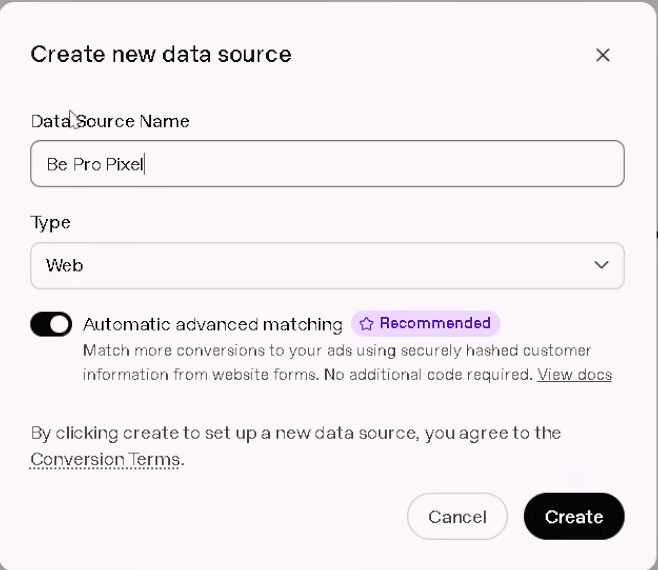
Once you create the new data source (aka your ChatGPT pixel)…
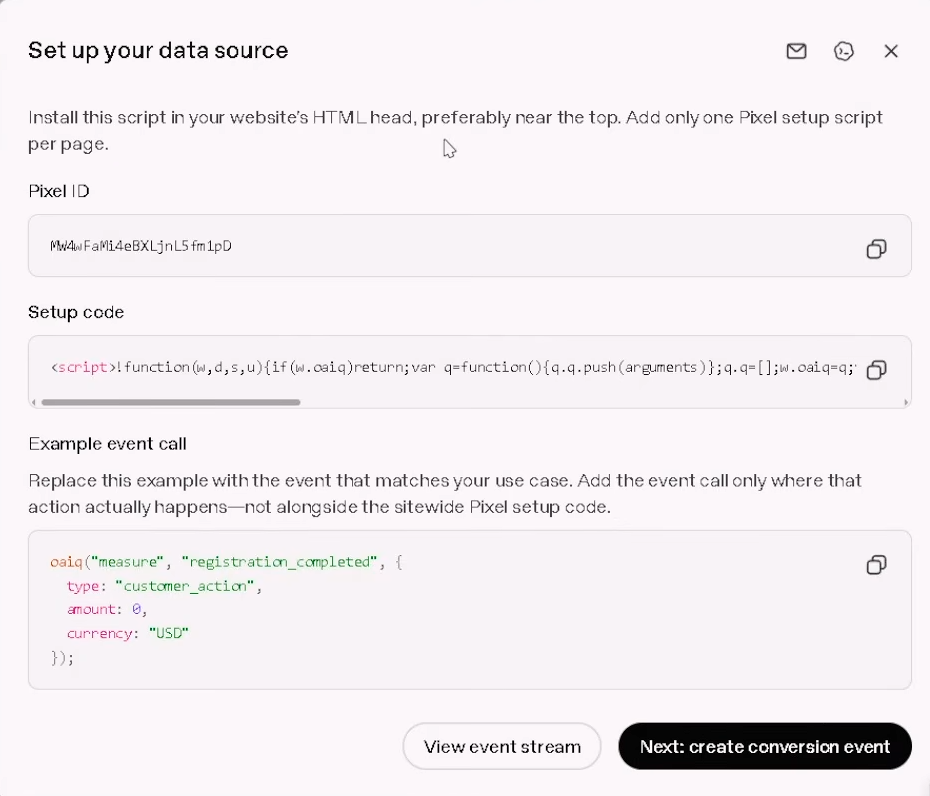
…you will be given the pixel ID and set up code.
Step 2: Install the Base Pixel Through Google Tag Manager
OpenAI had not yet published an official Google Tag Manager template when this walkthrough was recorded, so the base pixel is installed here as a Custom HTML tag set to fire on All Pages. OpenAI has since released an official template as an alternative, covered in the Things to Know section below.
When it comes to managing your website’s digital tracking, a tag manager is the preferred method because this is the fastest and most reliable way to do your digital tracking. Hopefully, you are already managing your various tags & pixels in this way. We use and recommend our clients use Google Tag Manager, but all tag managers function the same way.
Assuming you are using Google Tag Manager (GTM), go into GTM and create a new tag. As of our video tutorial, OpenAI did not have an official GTM template available (see the Things to Know section below), so you need to build this as a Custom HTML tag and paste in the base pixel script OpenAI Ads Manager gave you in Step 1. Set the trigger to fire on All Pages, since this base pixel needs to load sitewide, not solely on one page.
Do not publish yet. You will add one more tag in Step 4 and test both together before pushing anything live.
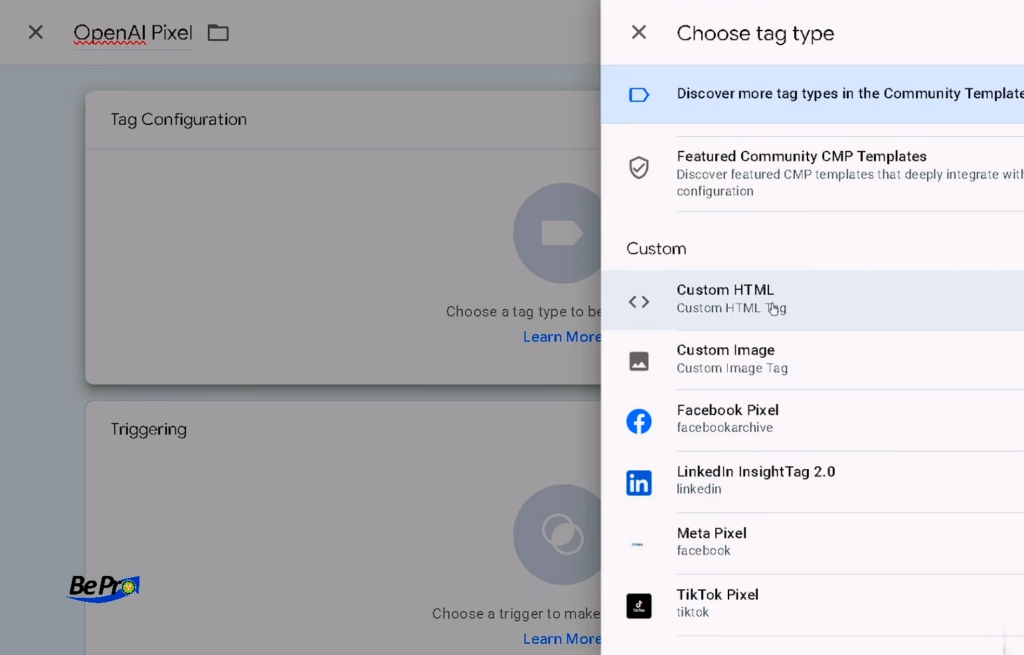
Create a custom HTML tag with Google Tag Manager by using a custom HTML…
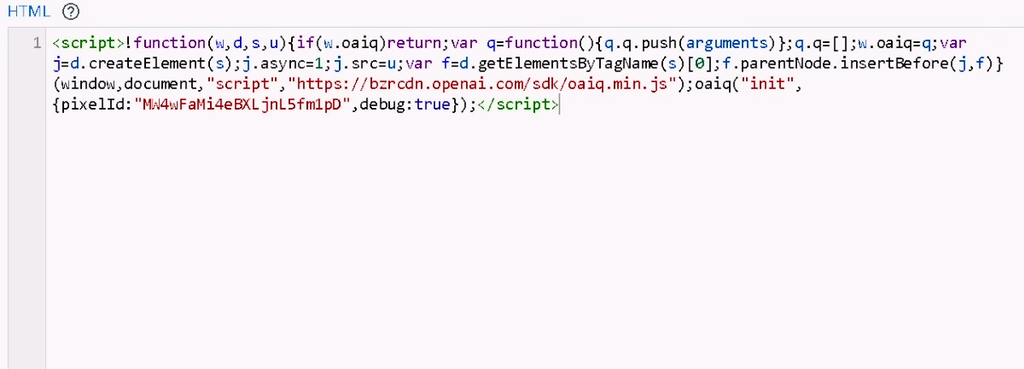
… paste in the custom HTML code for your ChatGPT pixel…

…and make sure it triggers on All Pages.
Step 3: Create An OpenAI Conversion Event For Your ChatGPT Ads
Back in the OpenAI Ads Manager, create a conversion event tied to your data source, choose a standard event type (lead, purchase, and similar), and give the event a specific name tied to the exact offer it belongs to. This produces a second, distinct piece of code that only needs to fire on the page where that action takes place.
With your base pixel created, go back into the OpenAI Ads Manager and, under that same data source, create a Conversion Event. You will choose from a set of standard base events: lead created, purchase, etc. Pick the type that best matches the action you want to track, then name the conversion event for the offer. For example, if you are tracking someone opting in from a blog post, you would likely choose the base Lead event and name the conversion “Blog Lead.”
Upon creation, this new conversion event produces its own code. This code snippet is separate from the base pixel and much smaller. When this conversion event code is triggered, it tracks one measurement for that specific conversion event. You can create as many of these conversion events as you have actions worth tracking. These each live under the same base pixel, but are reported individually.
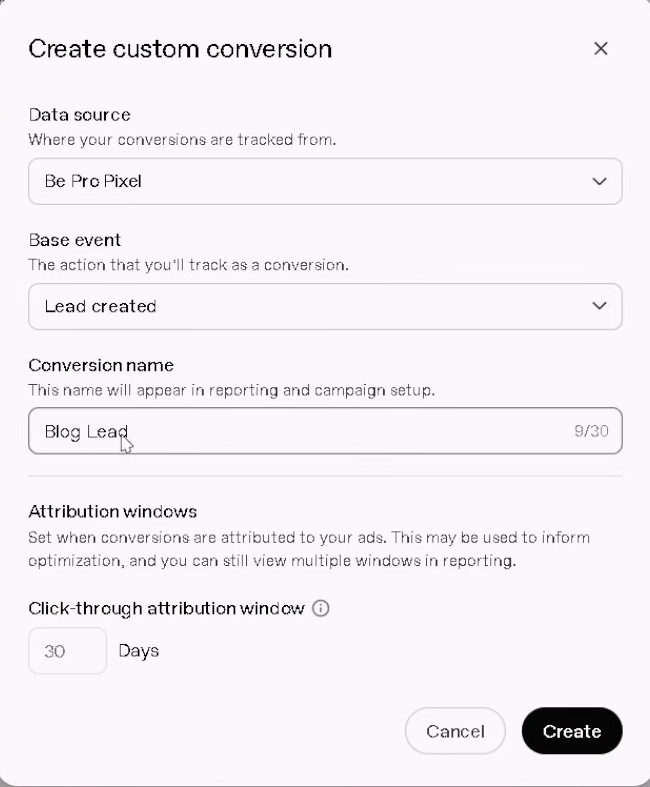
Create a custom conversion event, with a proper base event category and name, then…
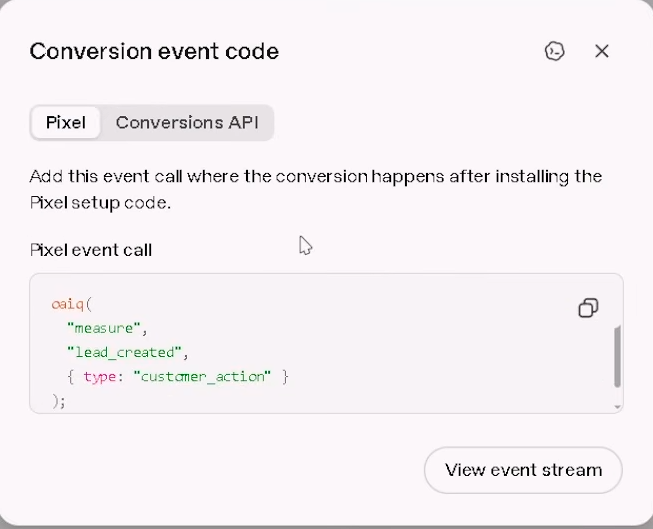
…after clicking ‘Create’ the unique pixel event call is created.
Step 4: Add The ChatGPT Conversion Event Into GTM And Test Before You Publish
Add a second Custom HTML tag in GTM for the conversion event’s code only, but trigger it for the specific confirmation or thank-you page where that action happens; not every page. Use GTM’s Preview mode and Tag Assistant to confirm the tag actually fires, and check that the same event shows up in OpenAI’s own event stream before publishing.
Back in GTM, create a second tag as Custom HTML with the conversion event code from Step 3. This time the trigger should only be the specific page where that action is confirmed to have happened, such as the thank-you page someone lands on after submitting a form. Remember, while the base pixel you configured in Step 2 fires everywhere, this event tag should only fire when the conversion action has actually happened.
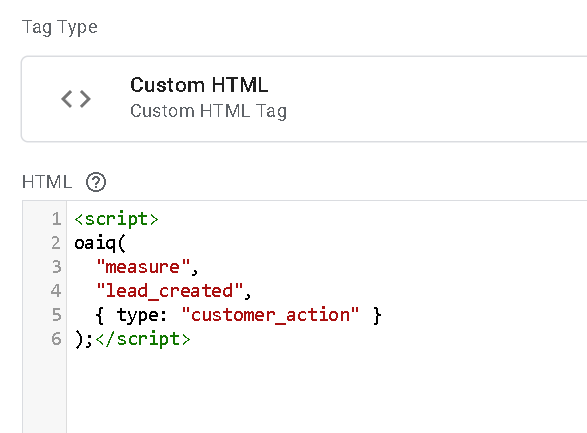
Make sure you put the <script> tags around the conversion event code otherwise it will not fire properly!
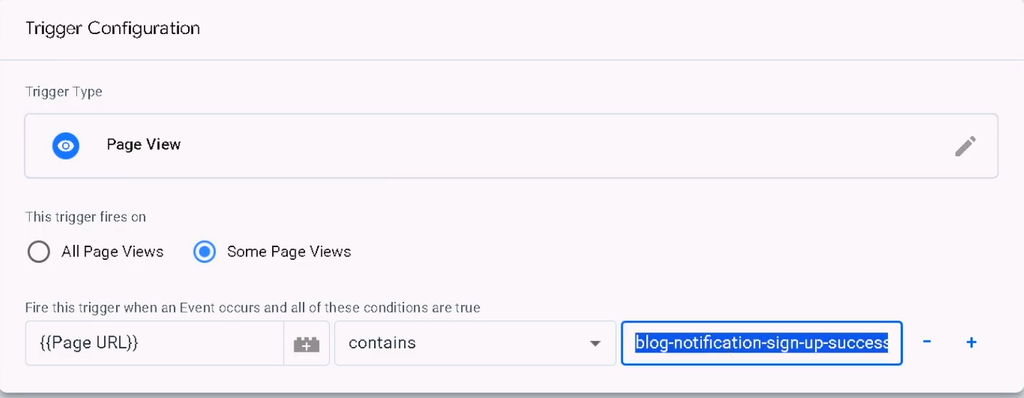
We created a basic Page View trigger for when the specific URL of the blog sign up success page is viewed. They had to have signed up for the blog to see this page.
Before publishing, it is recommended to use GTM’s Preview mode to open Tag Assistant and verify things are properly configured. First, you want to go into the OpenAI event stream section and click ‘Start polling’. This activates the debugging on ChatGPT’s end.
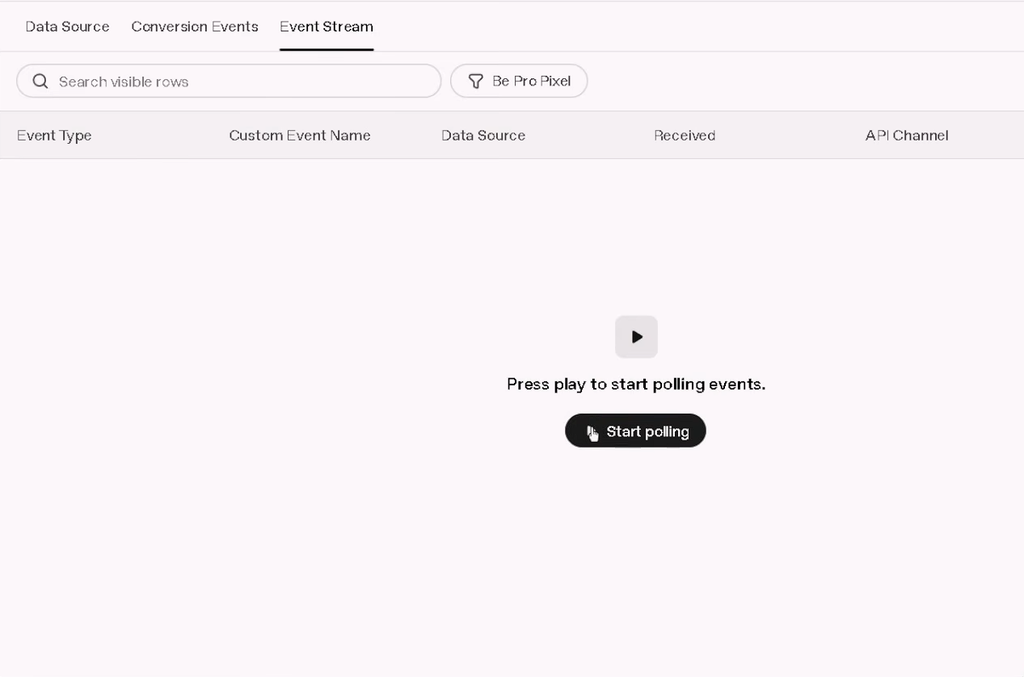
Before previewing in GTM, make sure OpenAI is polling for conversion events.
In the upper right of GTM, click the preview button to open Tag Assistant. Visit the trigger page yourself and confirm the event tag actually fired in the debug panel. Then check back inside Ads Manager’s Conversions section for its own event stream, which is built specifically for testing, and confirm the same event shows up there as well. Once both sides agree the event is firing correctly, publish your GTM container.
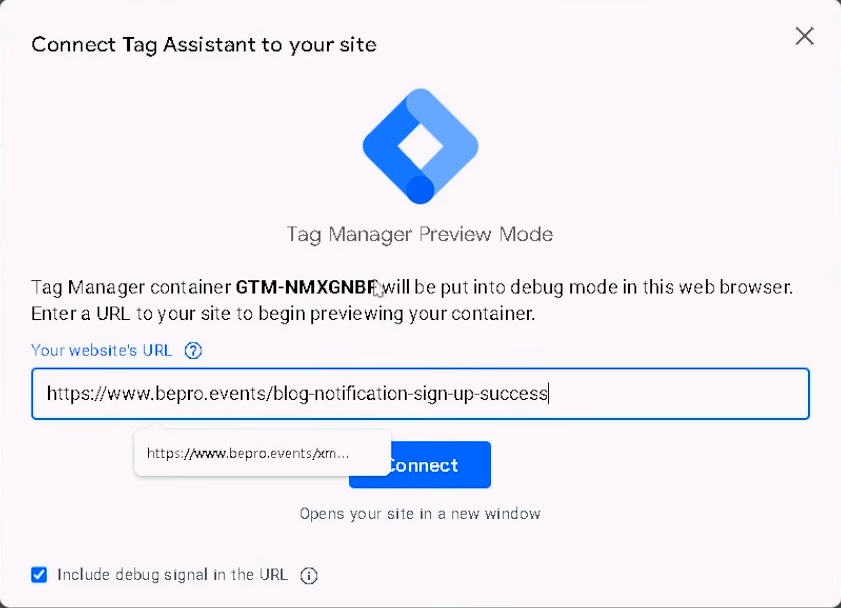
Entering the trigger URL inside Google Tag Manager’s Preview mode…
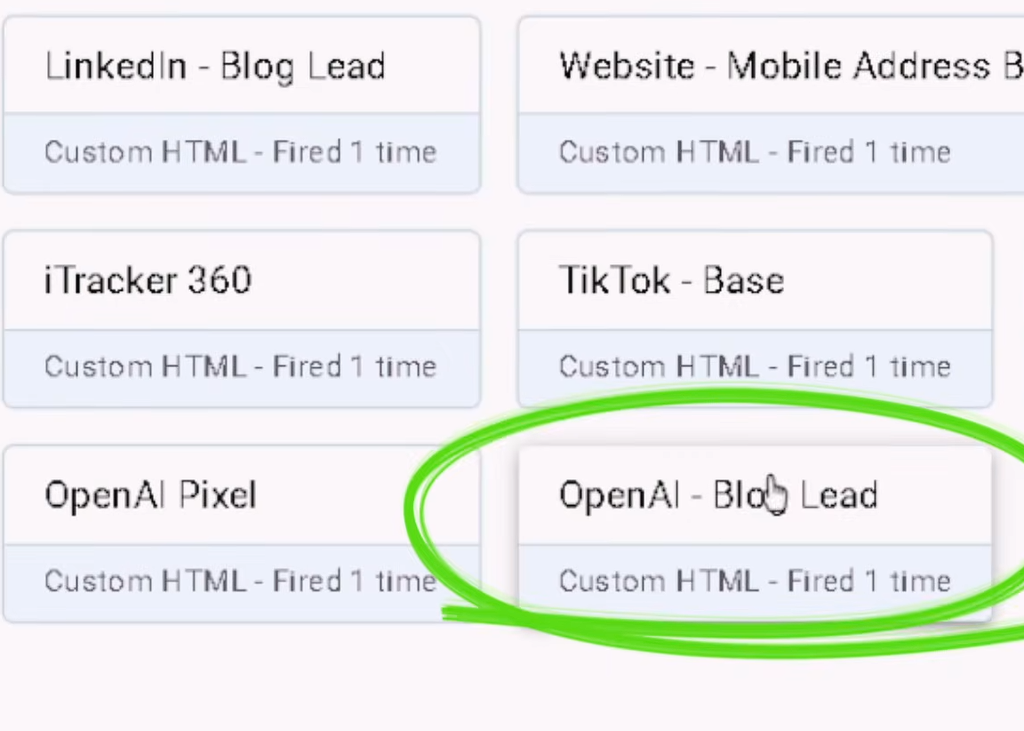
…once the page loads, you should see the base OpenAI Pixel has successfully fired as well as the conversion event…
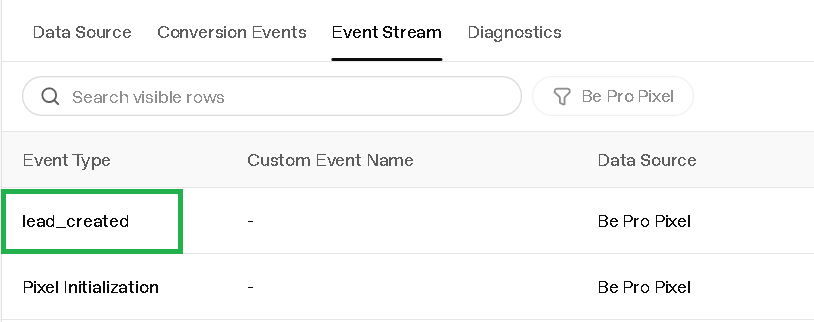
…you should also see the event in the event stream.
Step 5: Turn On the Conversions Objective In Your Campaign
Once your conversion event is confirmed working, the Conversions objective becomes available when building or editing a ChatGPT ad campaign. Simply choose that objective and select the specific conversion event when configuring your campaign.
With a working conversion event in place, you have now unlocked Conversion-based ads in OpenAI! When you go to create a new ChatGPT Ad campaign, the Conversions objective will now show up as an option. Remember, this is not available until at least one conversion event exists in the account. Choose Conversion as the objective then select the specific event for which you want that campaign to optimize. Everything else about the campaign, your Audience Context Hints and your ad Creative, works exactly the way we covered in our last post on how to run ChatGPT Ads.
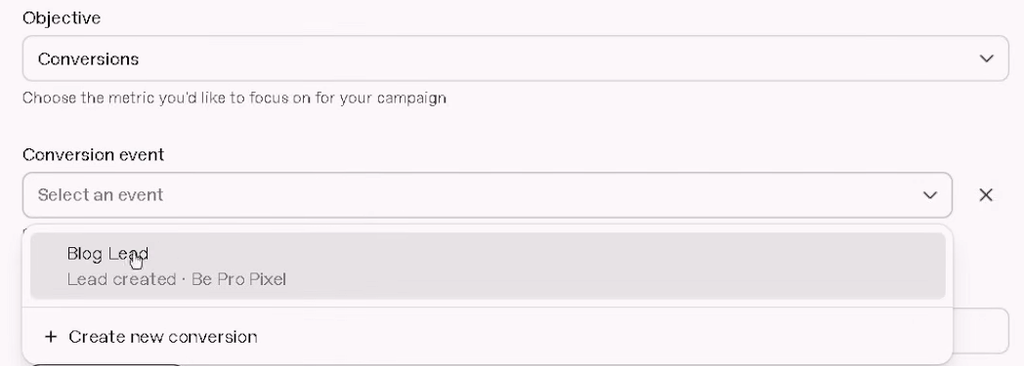
After setting up your ChatGPT pixel & conversion event in the OpenAI ad manager, you can create Conversion-based campaigns.
Things to Know Before You Set Up Your Pixel
There has since been a Google Tag Manager template for the OpenAI pixel released, though the Custom HTML tags implementation still works. Conversions will not appear as a campaign Objective until a conversion event already exists and is confirmed. Test with both GTM Preview mode & the OpenAI event stream before trusting a live campaign to it AND remember you must wrap the conversion code in <script> tags. Lastly, if you plan to send traffic beyond your homepage, business verification needs to be handled separately first.
- Between the video recording and this blog being published, an official GTM template for this ChatGPT pixel has been released. You can still set up the base OpenAI tracking and conversion script manually as a Custom HTML tag and it will work as designed. If you do want to use the GTM template, search for it in the Template Gallery inside GTM and make sure you are using the official version published by openai. 3rd party templates introduce a security risk.
- Do not expect to see the Conversions objective in your campaign setup until you have already created and confirmed a conversion event. The option for a Conversion campaign will be disabled until the pixel and first conversion event have been established.
- You must wrap the provided conversion code in <script> tags! This is critical and was missing from the original walkthrough video but is shown properly in the screenshots above.
- Trust the event only once you have confirmed it two ways: GTM’s own Preview mode via Tag Assistant, and OpenAI Ads Manager event stream showing the same event. One without the other is not enough confirmation to confidently launch a live campaign. For example, in our own original testing we neglected to wrap the conversion code in <script> tags so, while Preview mode with GTM showed that it fired successfully, OpenAI was NOT showing anything in the event stream which told us something was wrong.
- As mentioned in our original blog post, if you are running ads to a link deeper than your homepage, you must complete business verification first. This is a separate step you need to take care of in addition to the pixel & conversion configuration.
We have to hand it to OpenAI because, once you understand the two-layer structure of a base pixel plus named conversion events, the ChatGPT setup for conversion campaigns moves fast. The part worth taking your time on is naming your events clearly enough so that, months from now, you still know exactly which funnel “blog lead” or any other events refer to.
Download the Free OpenAI Ad Planning Tool Now
Our free OpenAI Ad Plan Tool gives you a place to not only record your Data Source ID and Conversion Event but you can clearly define the rest of your campaign settings, Context Hints, and ad copy, all in one place before you ever open Ads Manager.
Free Resource Be Pro’s – OpenAI Ad Plan Template
Launch Your Ads Confidently And Quickly!
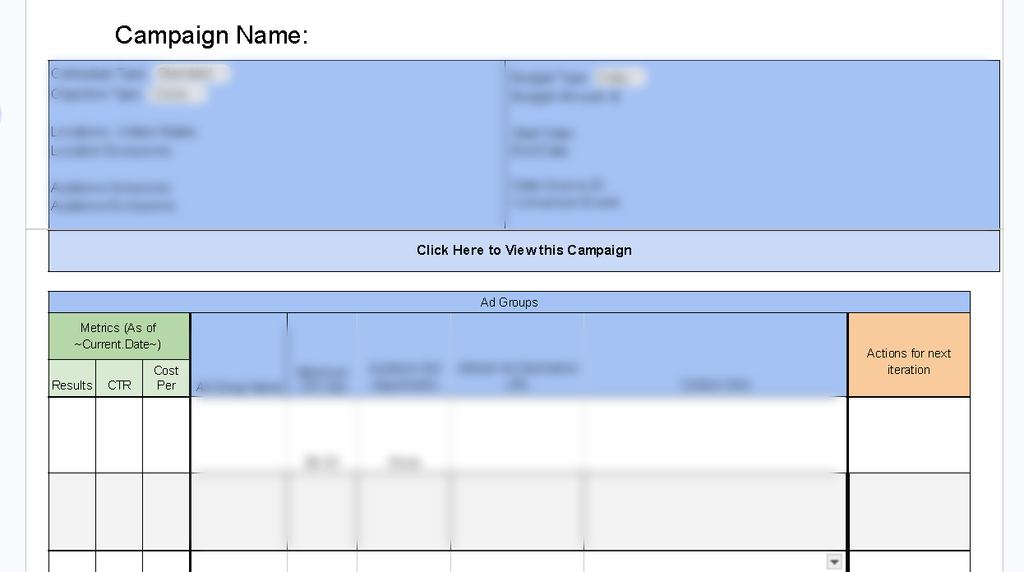
👇 Get Your Own Functioning Copy Of Our Google Doc 👇
Frequently Asked Questions
Do I need Google Tag Manager to install the ChatGPT pixel?
No. While using some kind of a Tag Manager is the recommended professional way to do digital tracking, OpenAI’s scripts can be pasted directly into your site’s header code as well. This is a more technical and risky approach directly involving your website code which can be more challenging to test & debug.
Where do I find the official ChatGPT Google Tag Manager template?
In Google Tag Manager, go to Templates, select Search Gallery under Tag Templates, and search for “openai.” Use the “OpenAI Ads Measurement Pixel” template published by openai. Similarly named templates from other publishers appear in the same results, so check the publisher name before importing.
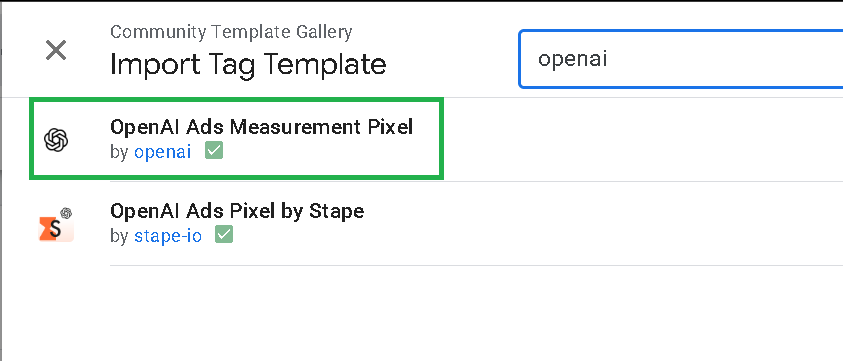
Make sure you are only using the template provided by OpenAI.
What is the difference between the base ChatGPT pixel and a conversion event?
The base pixel is the one-time setup tied to your ad account, installed once and left firing on every page of your website. A conversion event sends data about one specific action back to this base pixel, such as a blog opt-in or a booked call. You can have multiple conversion events and triggers but you should only have one base ChatGPT pixel receiving that data.
Why can I not find the Conversions objective when setting up a ChatGPT Ad campaign?
This will not appear until you have created at least one conversion event and confirmed it is firing. Complete Steps 1 through 4 first.
How do I know the ChatGPT pixel is working before I launch an OpenAI ad campaign?
You can confirm the ChatGPT tracking script and conversion event are working by using OpenAI’s Ads Manager event stream. To help test and debug, we also recommend using the Preview mode of Google Tag Manager’s Tag Assistant.
Can I track more than one conversion action with the same ChatGPT pixel?
Yes. Your base pixel stays the same and you create separate, individually named, conversion events for each distinct behavior for which ads are being run.
Is there a cost to use the ChatGPT conversion pixel?
No. The pixel itself is free to install and use. The only cost is the ad spend on the campaigns being measured.